
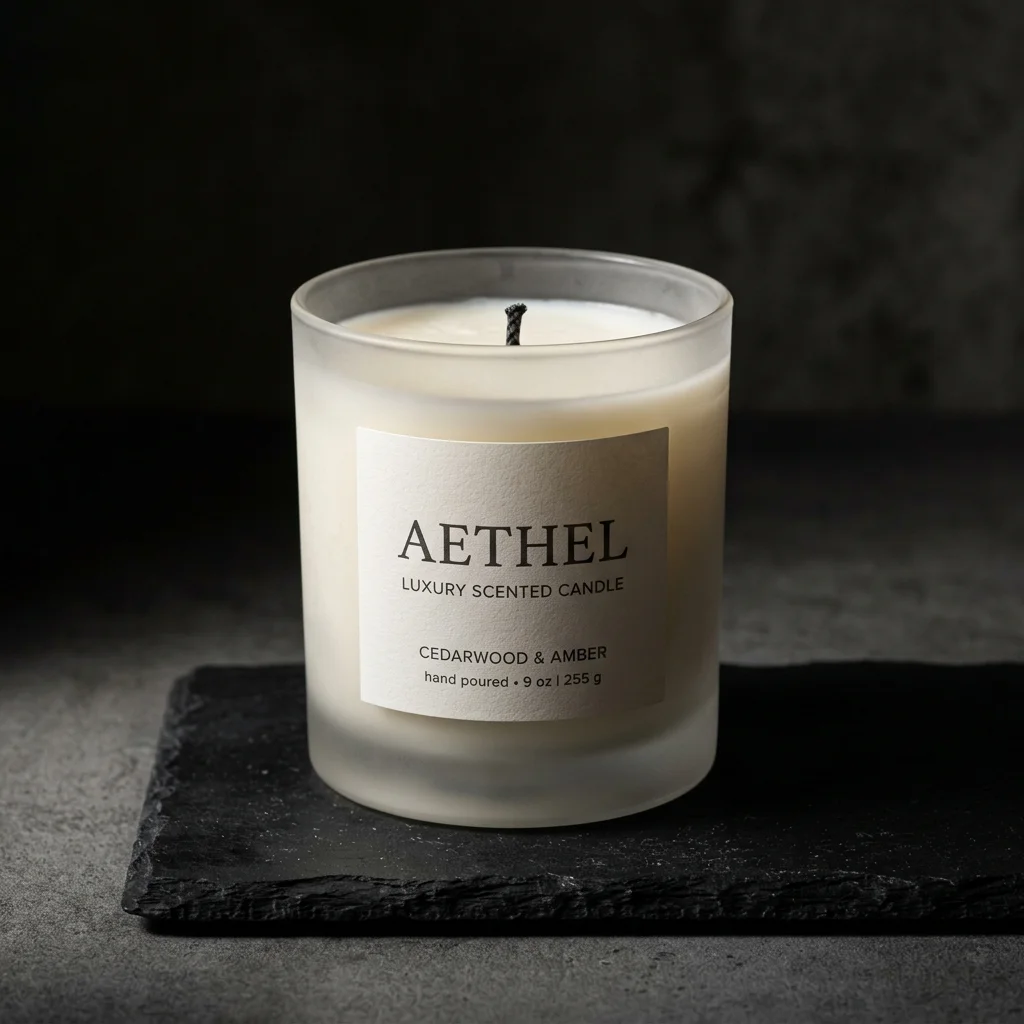
If you sit on the receiving end of reference photos for long enough, you start to recognise the difference between a brand that's going to get great work back and one that's going to get something serviceable. The brands in the first group don't necessarily have better cameras. They've just figured out, often by accident, what makes a phone photo useful to the people generating their final imagery — and what makes one a quiet headache for everyone involved.
This is the short version of what we wish every new client knew before they sent us their first batch. It applies whether you're working with us or with any other AI photography studio. The principles travel.
AI Visual Creator Playbook
Want a repeatable workflow for your own images?
Use the Pixelense playbook to plan, direct, review, and refine AI-assisted visual work in-house.
What the reference photo is actually for
A common misunderstanding: people assume their phone photo needs to look good. It doesn't. The reference is the AI's source of truth about your product — its shape, its proportions, the colour of the cap versus the bottle, the way the label sits, the curve of the handle. None of that has to be photographed beautifully. It has to be photographed clearly.
Once you internalise that distinction, the whole process gets easier. You stop worrying about whether the lighting is "professional" and start asking whether the photo answers the questions the AI is going to need to answer when generating the real shot. Can it tell where the product ends and the background begins? Can it see the seams? Is the colour close to what it really is, or has the light made it look something it isn't?
Light first, everything else after
More problems come from bad light than from any other single thing. The fix is free: shoot near a window, on an overcast day or in the soft hours of morning or late afternoon. Move the product close enough that the window light wraps around it. Don't shoot in your kitchen at night under a yellow ceiling bulb; the AI will inherit the colour cast, and you'll get back imagery in a colour your product has never actually been.
If the only window you've got is throwing direct sun, hang a white bedsheet, a shower curtain, or a sheet of baking paper over it. That diffused light is what studio softboxes are imitating. It costs nothing and it solves most of the lighting problems that downstream affect the AI work.
The two things to actively avoid: a phone flash, which flattens the product and kills any sense of depth; and a room with overhead fluorescents mixing with daylight from a window, which gives you two different colour temperatures in the same shot. Either pick the daylight or close the curtains and use a single warm source — don't mix.
Background and surface
Plain, single-colour, contrasting with the product. A sheet of A3 paper on a desk is fine. A clean tea towel works for small items. The kitchen counter is fine if it isn't busy. Two things matter here: the AI needs to see your product's edges clearly (so contrast matters more than aesthetics), and the background will be entirely replaced in the final imagery (so don't waste time styling it).
A counter-intuitive note: if your product is white or very pale, photograph it on something darker, not on white. White-on-white reference photos are the single most common cause of edge confusion in the final output. Same applies in reverse for very dark products — give the AI a lighter ground to read against.
Angles — six is usually enough
For most products, six photos cover what we need: front, back, left side, right side, top-down, and a three-quarter view that shows the front and one side together. The three-quarter is the most useful single shot if you only manage one — it gives more dimensional information than a straight-on view.
If your product has distinctive details — engraved logos, decorative stitching, a particular bottle cap, a unique closure — take an additional close-up of each. Don't make us guess. A spare detail shot takes you ten seconds and saves a round of revisions.
Phone settings, briefly
Default camera app, main lens (not the ultra-wide; it warps proportions at close range), HDR off, all filters off. Tap on the product and hold to lock focus and exposure so the camera doesn't drift between shots. Don't pinch to zoom — physically move closer. Digital zoom is just cropping after the fact, with quality loss baked in.
And clean your lens. This isn't a joke. Half the soft, slightly hazy reference photos we receive have a fingerprint on the back of the phone that's invisible to the photographer and obvious in every shot they've taken that day.
Keep the phone still
Blurry reference photos cost you in the final output — the AI inherits the softness. You don't need a tripod, although a £10 phone tripod is genuinely worth buying if you'll be doing this regularly. Failing that: brace your elbows on the table, use the volume button to trigger the shutter (steadier than tapping the screen), or use the timer if you're working alone and need both hands to hold the product.
The mistakes I see most weeks
In rough order of frequency:
- Products shot inside their plastic packaging or with shrink wrap still on. Take it off — the AI will faithfully generate the wrap.
- Heavy filtering or editing before sending. Send the raw, un-Instagrammed file. Filters baked into the reference cause colour drift in the output.
- Reference photos with other items in the frame — phones, keys, the corner of a laptop. The AI sometimes integrates those into its understanding of "what the product looks like." Crop them out.
- Shooting under fluorescent office lighting. Almost every supermarket and office strip light has a green cast that turns everything slightly sickly.
- Sending five near-identical front-on shots and no other angles. We can't infer depth from variations of the same view.
A few category-specific notes
Apparel
Lay garments flat on a clean surface, smooth out wrinkles, and shoot from directly overhead. For structured pieces — jackets, bags, hats — stuff them lightly with tissue to hold their shape. A wilted bag is a wilted bag in the final image too.
Jewellery and small metal goods
If your phone has a macro mode, this is when to use it. Shoot against a dark, matte background so reflections and facet detail show up clearly. For very small pieces — earrings, charms — getting the camera physically close matters more than any other setting.
Glass, fragrance, anything transparent
Photograph against both a light and a dark background — two sets of the same angles. The pair tells the AI where the glass is reflecting and where it's letting light through, which is information it can't reliably guess from a single shot.
Food and consumables
Photograph the product as it actually presents — labels facing camera, packaging undamaged. For loose items (powders, oils, supplements), include one shot of the contents outside the packaging if that's relevant to your imagery.
If you do nothing else
Six clear, well-lit phone photos taken near a window on an overcast morning, no filters, no zoom, clean lens — that's enough to get great work back. Everything above is refinement. The reference is the foundation; spend ten extra minutes on it and you save yourself a revision round later.
If you're ready to put it to use, send your reference photos to our team and we'll come back with a first batch within twenty-four to forty-eight hours.
AI Visual Creator Playbook
Build your next image set with a clearer process.
Use the Pixelense playbook to plan, direct, review, and refine AI-assisted visual work in-house.